Design Space가 무엇인가요?
"Design Space™는 모든 Cricut™ 커팅 머신을 구동하는 무료이자 쉽게 배울 수 있는 앱입니다. 데스크톱과 모바일에서 모두 사용할 수 있으며, 이곳에서 아이디어를 탐색하고, 나만의 스타일로 꾸미고, 디자인하여 당신의 창의적인 상상을 현실로 만들 수 있습니다."
무한한 가능성을 만나보세요.
아래 영상을 통해 앱의 기능과 구성을 직접 확인해보세요.
-
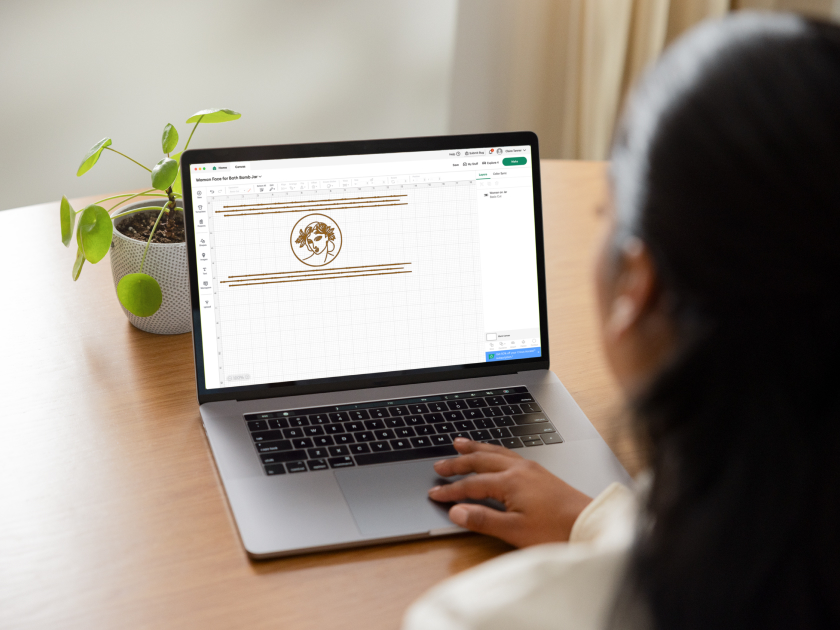
디자인"이미지를 업로드하거나, 누구나 쉽게 사용할 수 있는 도구로 직접 디자인해보세요. 또는 완성된 디자인을 나만의 스타일로 자유롭게 꾸며보세요."
-
둘러보기"전문가와 크리에이터들이 만든 다양한 이미지, 폰트, 프로젝트들이 추가되는 라이브러리에서 끝없는 영감을 얻어보세요."
-
알아보기"초보자도 쉽게 따라 할 수 있는 튜토리얼과 프로젝트로 시작해보세요. 자세한 단계별 안내로 직접 만들며 배우는 즐거움을 느껴보세요."
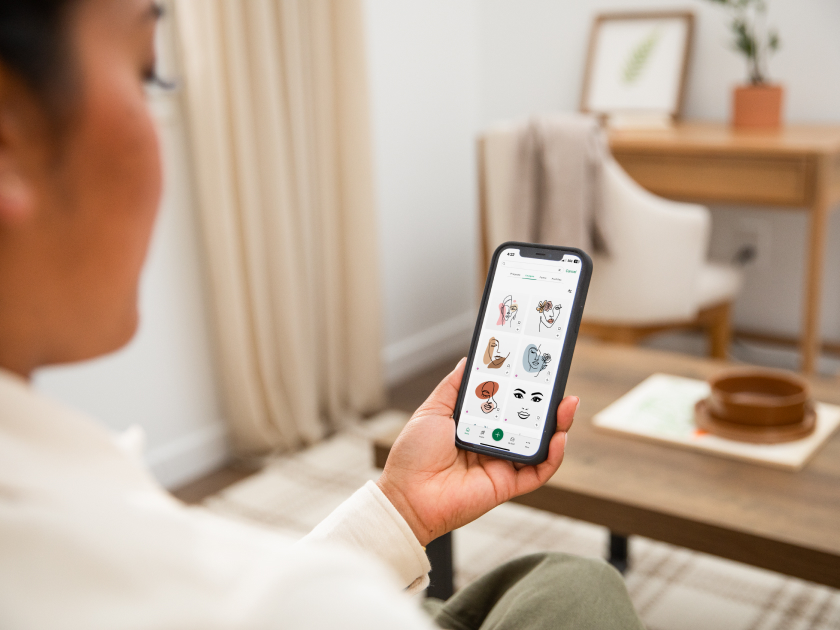
언제든 어디서나 끝없는 영감을 받아보세요.
"지금 뜨는 트렌드를 살펴보거나, 언제나 새롭게 추가되는 이미지·폰트·프로젝트를 라이브러리에서 찾아보세요. 항상 새로운 영감을 주는 아이디어를 만날 수 있습니다."
"혼자 시작하기 막막한가요? 필요한 가이드를 지금 받아보세요."
"초보자도 쉽게 따라 할 수 있는 튜토리얼로 직접 만들며 배우는 즐거움을 경험해보세요. DIY 치트시트를 다운로드해 유용하게 활용해보세요."
튜토리얼
"단계별 가이드를 통해 Design Space 사용법을 익히고, 더 쉽고 즐겁게 나만의 작품을 만들어보세요."
치트시트
"가이드, 체크리스트, 용어집, 단축키 등 필요한 자료를 모두 무료로 받아보세요!"
구독을 통해 더 많은 기능과 혜택을 경험해보세요.
"Cricut Access™는 유료 인앱 구독 서비스입니다. 프리미엄 이미지, 폰트 및 프로젝트와 전용 디자인 도구 등 Design Space의 모든 기능을 활용하여 한 단계 업그레이드된 작품을 만들어보세요."
Cricut Design Space is available for Windows/Mac computers and iOS/Android mobile devices. Select a link below to download Design Space to your device.
- Design Space for Desktop (Mac/Windows)
- iOS (Apple App Store)
- Android (Google Play Store)
Design Space is free to download and use right away with your Cricut smart cutting machine! A small selection of Cricut images and fonts come free with your account, but you can upload your own images and use your system fonts for free. The ever-growing Cricut library contains thousands of ready-to-make projects, images, and fonts which you can purchase a la carte as desired - after which they’re yours to use in Design Space forever at no additional cost or you can maximize your making with a Cricut Access subscription, which gives you unlimited use of everything in the Cricut library marked with the Cricut Access™ symbol.*
*At this time, licensing agreements disallow inclusion of Disney, Warner Bros., Sesame Street, Autodesk, and other licensed content in Cricut Access. This content, where available, will require purchase.
Cricut smart cutting machines connect to Design Space either via Bluetooth® or the USB cable that comes in the box.
To connect via USB cable: 1. Connect the USB cable to your Cricut machine. 2. Connect the USB cable to your computer. (If your computer doesn’t have a compatible USB port (USB-A), connect via Bluetooth instead.) 3. Once connected, you can continue setting up your product or making your project.
To connect via Bluetooth (steps vary by device): 1. Ensure your Cricut machine is powered on. 2. Open your device’s Bluetooth settings and ensure Bluetooth is toggled on. a. On a Windows computer, select the option to Add a Bluetooth device. 3. Select your Cricut machine in the list of “Other devices”. The machine should appear as the model + Bluetooth ID (i.e., Maker3-XXXX). If prompted for a pairing code/PIN, enter 0000. 4. Your Cricut machine should now be connected via Bluetooth. You can return to Design Space and continue setting up your product or making your project.
*Cricut Joy and Cricut Joy Xtra connect via Bluetooth only. These models are not configured for use with a USB cable.
Cricut Design Space works with the latest Windows and Mac computers, iOS mobile devices, and Android mobile devices.
Learn more about supported operating systems and devices, and minimum requirements for Design Space at cricut.com/system-requirements.
Any issues you experience with the app can usually be resolved with some basic steps: 1. Ensure the app is up to date (How?). 2. Ensure your computer or mobile device operating system is up to date (How?), and that it meets the system requirements for Design Space. 3. Sign out of Design Space, then sign back in. 4. Restart your computer or mobile device. 5. If issues persist, you can uninstall Design Space, restart your device, then reinstall Design Space. Be advised, while projects are saved to the Cricut cloud by default, if you have any projects saved only to your device, make sure you save them to the cloud before uninstalling Design Space.
If you need further assistance after completing these steps, contact Member Care.
Updating Design Space to the latest version is easy!Windows/Mac computer: In Design Space open the menu in the top right and select Settings > General, then select Check for updates in the “About Design Space” section. If any updates are available, you’ll see the option to Install Update. You can also download the latest version at design.cricut.com.
iOS: Open the App Store app on your device and tap the profile icon. Scroll through your list of apps to find Design Space. If there’s an update available, tap the Update button to proceed. You can also search for “Design Space” in the App Store; if an update is available, tap the Update button to proceed.
Android: Open the Google Play Store app on your device and tap the profile icon. Tap Manage apps & device > Manage. Tap the app you wish to update, then select the Update option. You can also search Google Play for "Cricut Design Space”, then select it in the list of search results. If an update is available, tap the Update button to proceed.
Design Space is available for both iOS and Android mobile devices! Visit cricut.com/system-requirements for information about supported iOS and Android operating systems and devices.
Design Space contains a variety of features and content to help you create custom projects from scratch. From the Canvas you can add Text, add images from the Cricut library or upload your own, edit size and colors, and choose whether your images/text will cut, draw, Print Then Cut, etc. – depending on the capabilities of your Cricut machine.
You can upload your own images and use your system fonts for free, or you can subscribe to Cricut Access* for unlimited use of thousands of shapes, images, and fonts from the ever-growing Cricut library to create your own designs! The Cricut library also contains thousands of ready-to-make projects waiting to inspire your creativity – either make them as-is or edit to customize for your needs.
*Most Cricut images, fonts, and projects can also be purchased a la carte as needed.
There are plenty of video resources on Design Space including how- to’s, demos, and tips & tricks. Check out these beginner how-to videos on Design Space! We are continually working to provide more instruction within the app on all platforms, but to view more Cricut tutorials visit our YouTube channel, YouTube.com/Cricut
* iOS is a trademark or registered trademark of Cisco in the U.S. and other countries. Android is a trademark of Google, LLC. Windows® is a registered trademark of Microsoft Corporation in the United States and/or other countries. Mac is a trademark of Apple Inc., registered in the U.S. and other countries.