Mikä on Design Space?
Design Space™ on ilmainen ja helppokäyttöinen Cricut™-sovellus, joka toimii kaikilla Cricut-leikkureilla. Se on saatavilla tietokoneelle ja mobiililaitteille, ja sen avulla voit löytää uusia mahdollisuuksia, tehdä muutoksia ja toteuttaa luovia visioitasi.
Katso, mitä kaikkea voit tehdä.
Katso alla oleva video ja tutustu sovellukseen.
-
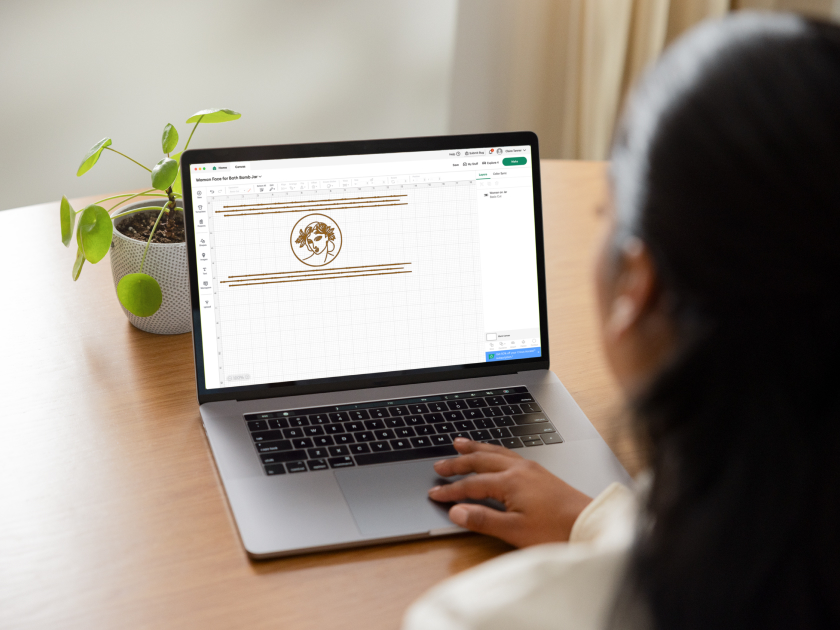
KuvioLataa kuva, suunnittele tyhjästä helppokäyttöisillä työkaluilla tai muokkaa valmista projektia.
-
TutustuJatkuvasti laajenevasta kirjastosta saat uusia ideoita kuvista, fonteista ja projekteista, jotka ovat ammattilaisten ja kaltaistesi askartelijoiden tekemiä.
-
Lue lisääHyödynnä aloittelijoille sopivia oppaita ja projekteja. Yksityiskohtaisten ohjeiden ansiosta voit sukeltaa projekteihin ja oppia tekemällä.
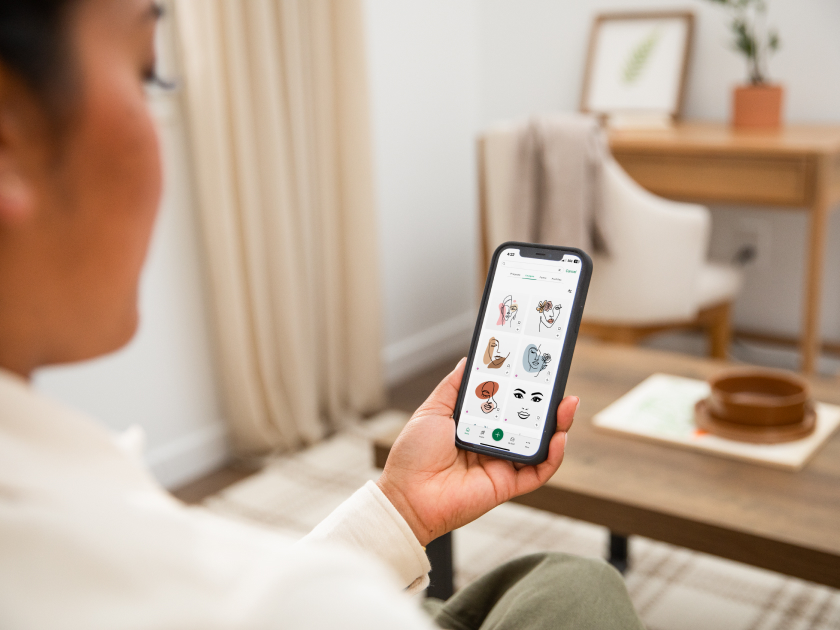
Loputonta inspiraatiota ulottuvillasi.
Tutustu trendeihin tai hae sisältöä jatkuvasti kasvavasta kuvien, fonttien ja projektien kirjastostamme. Löydät aina jotain uutta ja inspiroivaa.
Saat haluamasi ja tarvitsemasi ohjeet.
Päästä luovuutesi valloilleen aloittelijoille sopivilla oppailla, joiden avulla opit tekemällä, ja lataa myös hyödylliset ohjetaulukot askartelua varten.
Opastusvideot
Paranna askartelukokemustasi ja opi tekemään luomuksia Design Spacen avulla harjoituksilla, joissa kaikki käydään läpi vaihe vaiheelta.
Ohjetaulukot
Kätevät oppaat, hyödylliset ohjetaulukot, askartelusanasto, pikanäppäimet ja paljon muuta – kaikki ladattavissa ilmaiseksi!
Paranna kokemustasi tilauksella.
Cricut Access™ on maksullinen sovelluksen sisäinen tilaus. Saat käyttöösi kaiken, mitä Design Space tarjoaa, mukaan lukien premium-kuvat, -fontit ja -projektit sekä ainutlaatuiset suunnittelutyökalut, joiden avulla voit viedä askartelusi uudelle tasolle.
Cricut Design Space is available for Windows/Mac computers and iOS/Android mobile devices. Select a link below to download Design Space to your device.
- Design Space for Desktop (Mac/Windows)
- iOS (Apple App Store)
- Android (Google Play Store)
Design Space is free to download and use right away with your Cricut smart cutting machine! A small selection of Cricut images and fonts come free with your account, but you can upload your own images and use your system fonts for free. The ever-growing Cricut library contains thousands of ready-to-make projects, images, and fonts which you can purchase a la carte as desired - after which they’re yours to use in Design Space forever at no additional cost or you can maximize your making with a Cricut Access subscription, which gives you unlimited use of everything in the Cricut library marked with the Cricut Access™ symbol.*
*At this time, licensing agreements disallow inclusion of Disney, Warner Bros., Sesame Street, Autodesk, and other licensed content in Cricut Access. This content, where available, will require purchase.
Cricut smart cutting machines connect to Design Space either via Bluetooth® or the USB cable that comes in the box.
To connect via USB cable: 1. Connect the USB cable to your Cricut machine. 2. Connect the USB cable to your computer. (If your computer doesn’t have a compatible USB port (USB-A), connect via Bluetooth instead.) 3. Once connected, you can continue setting up your product or making your project.
To connect via Bluetooth (steps vary by device): 1. Ensure your Cricut machine is powered on. 2. Open your device’s Bluetooth settings and ensure Bluetooth is toggled on. a. On a Windows computer, select the option to Add a Bluetooth device. 3. Select your Cricut machine in the list of “Other devices”. The machine should appear as the model + Bluetooth ID (i.e., Maker3-XXXX). If prompted for a pairing code/PIN, enter 0000. 4. Your Cricut machine should now be connected via Bluetooth. You can return to Design Space and continue setting up your product or making your project.
*Cricut Joy and Cricut Joy Xtra connect via Bluetooth only. These models are not configured for use with a USB cable.
Cricut Design Space works with the latest Windows and Mac computers, iOS mobile devices, and Android mobile devices.
Learn more about supported operating systems and devices, and minimum requirements for Design Space at cricut.com/system-requirements.
Any issues you experience with the app can usually be resolved with some basic steps: 1. Ensure the app is up to date (How?). 2. Ensure your computer or mobile device operating system is up to date (How?), and that it meets the system requirements for Design Space. 3. Sign out of Design Space, then sign back in. 4. Restart your computer or mobile device. 5. If issues persist, you can uninstall Design Space, restart your device, then reinstall Design Space. Be advised, while projects are saved to the Cricut cloud by default, if you have any projects saved only to your device, make sure you save them to the cloud before uninstalling Design Space.
If you need further assistance after completing these steps, contact Member Care.
Updating Design Space to the latest version is easy!Windows/Mac computer: In Design Space open the menu in the top right and select Settings > General, then select Check for updates in the “About Design Space” section. If any updates are available, you’ll see the option to Install Update. You can also download the latest version at design.cricut.com.
iOS: Open the App Store app on your device and tap the profile icon. Scroll through your list of apps to find Design Space. If there’s an update available, tap the Update button to proceed. You can also search for “Design Space” in the App Store; if an update is available, tap the Update button to proceed.
Android: Open the Google Play Store app on your device and tap the profile icon. Tap Manage apps & device > Manage. Tap the app you wish to update, then select the Update option. You can also search Google Play for "Cricut Design Space”, then select it in the list of search results. If an update is available, tap the Update button to proceed.
Design Space is available for both iOS and Android mobile devices! Visit cricut.com/system-requirements for information about supported iOS and Android operating systems and devices.
Design Space contains a variety of features and content to help you create custom projects from scratch. From the Canvas you can add Text, add images from the Cricut library or upload your own, edit size and colors, and choose whether your images/text will cut, draw, Print Then Cut, etc. – depending on the capabilities of your Cricut machine.
You can upload your own images and use your system fonts for free, or you can subscribe to Cricut Access* for unlimited use of thousands of shapes, images, and fonts from the ever-growing Cricut library to create your own designs! The Cricut library also contains thousands of ready-to-make projects waiting to inspire your creativity – either make them as-is or edit to customize for your needs.
*Most Cricut images, fonts, and projects can also be purchased a la carte as needed.
There are plenty of video resources on Design Space including how- to’s, demos, and tips & tricks. Check out these beginner how-to videos on Design Space! We are continually working to provide more instruction within the app on all platforms, but to view more Cricut tutorials visit our YouTube channel, YouTube.com/Cricut
* iOS is a trademark or registered trademark of Cisco in the U.S. and other countries. Android is a trademark of Google, LLC. Windows® is a registered trademark of Microsoft Corporation in the United States and/or other countries. Mac is a trademark of Apple Inc., registered in the U.S. and other countries.